Reduce Processing Costs for Auto Rental Merchants
ISVs/merchants using Auto Rental software can now send the required Auto Rental transaction indicators and data elements — such as rental agreement details, rental dates, and related transaction information—through SPIn to Dejavoo terminals. Providing this data allows the transaction to be properly identified as an Auto Rental transaction and helps qualify for optimized interchange rates.
Feature Compatibility
- Minimum Required POS Build: 10177
- Supported Channels: SPIn API (SOAP & REST)
- Supported Devices: All Dejavoo Payment Terminals
- Supported Processors: TSYS
Key Features
-
Reduced processing costs through optimized interchange qualification
-
Auto Rental transaction support through SPIn Specification API
-
Rental Agreement Number support
-
Auto Rental transaction qualification support
-
Transaction retrieval and reporting support
-
Merchant and electronic receipt support
Configuration Requirements
-
Auto Rental processing is available only for merchants configured with an Auto Rental MCC.
-
Configure the merchant with one of the following Auto Rental MCCs:
- MCC 7512
- MCC 7513
- MCC 7519
- MCC 3390
-
Rental Agreement Numbers support up to 26 characters.
-
Auto Rental details are printed on merchant receipts only when a valid Rental Agreement Number is included in the transaction and receipt printing is enabled.
Configuration
Merchant Configuration
Existing Merchant Setup
- Log in to the iPOSpays portal using your ISO account credentials.
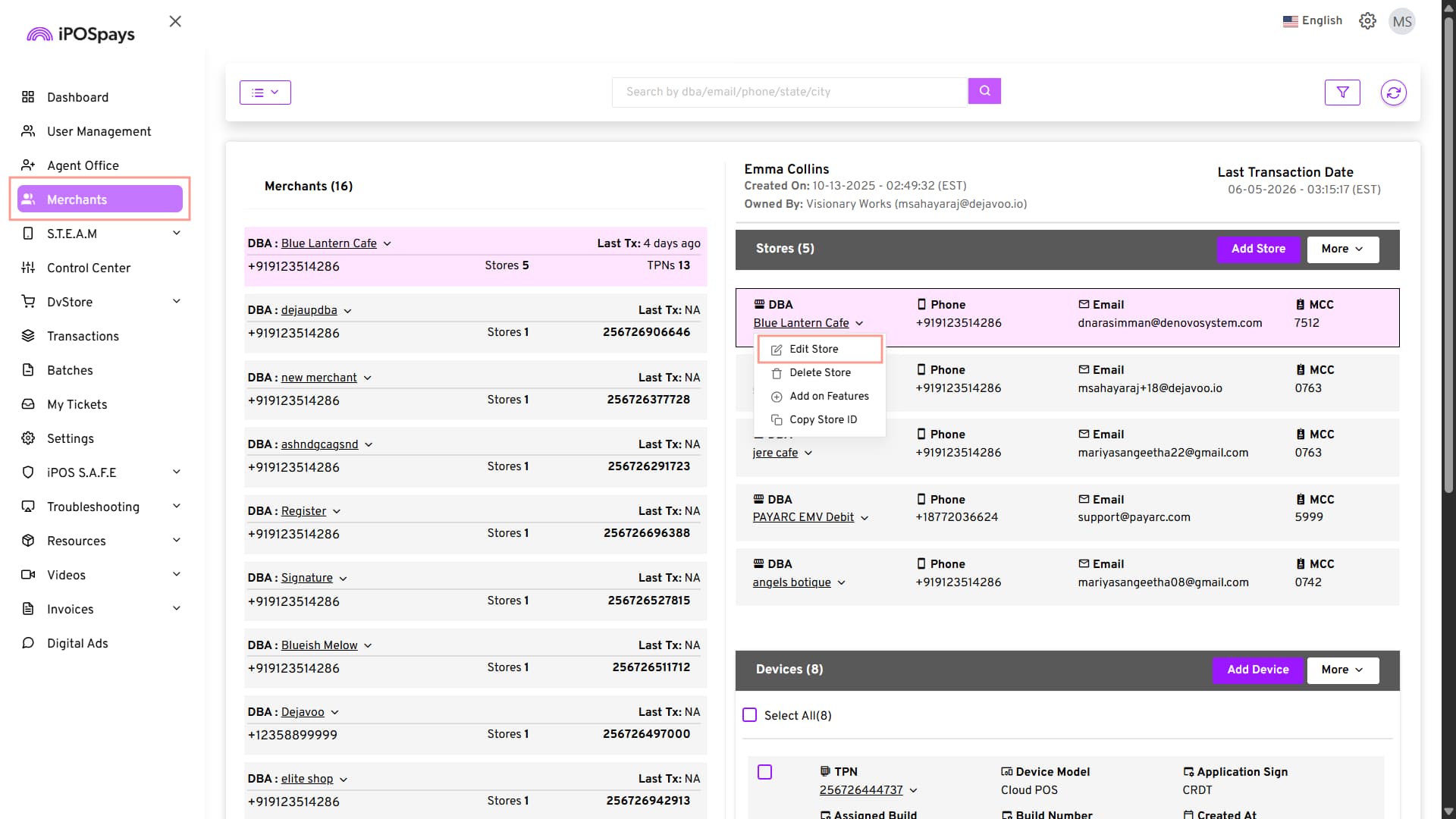
- Navigate to: Merchants → Search Merchant → Select Merchant (DBA) → Edit Store
-
Configure the merchant with one of the following Auto Rental MCCs:
- MCC 7512
- MCC 7513
- MCC 7519
- MCC 3390
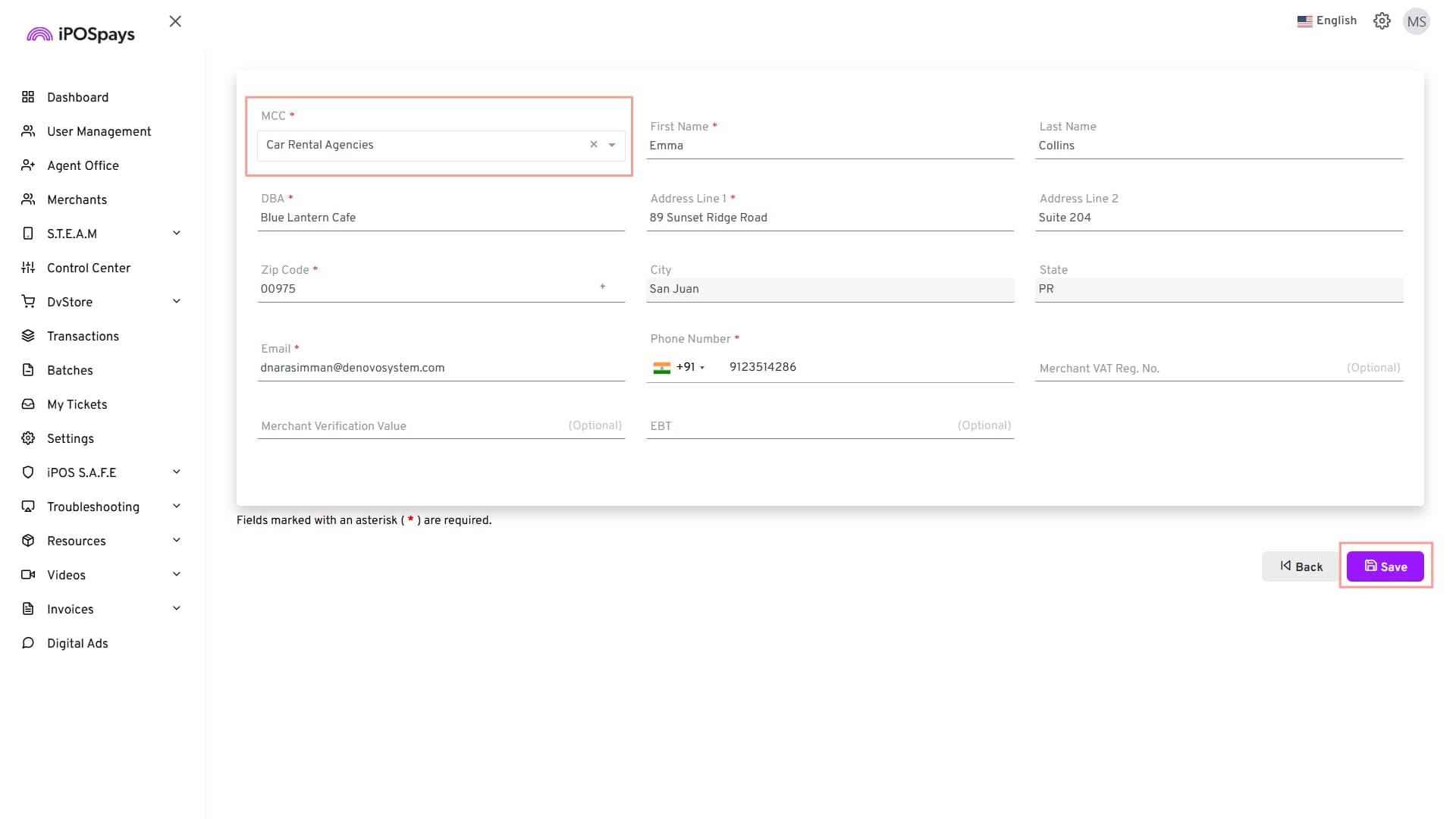
- Click Save.
New Merchant Onboarding
Follow the standard merchant onboarding process.
In the Store Details section, select an Auto Rental MCC from one of the following ranges:
- MCC 7512
- MCC 7513
- MCC 7519
- MCC 3390
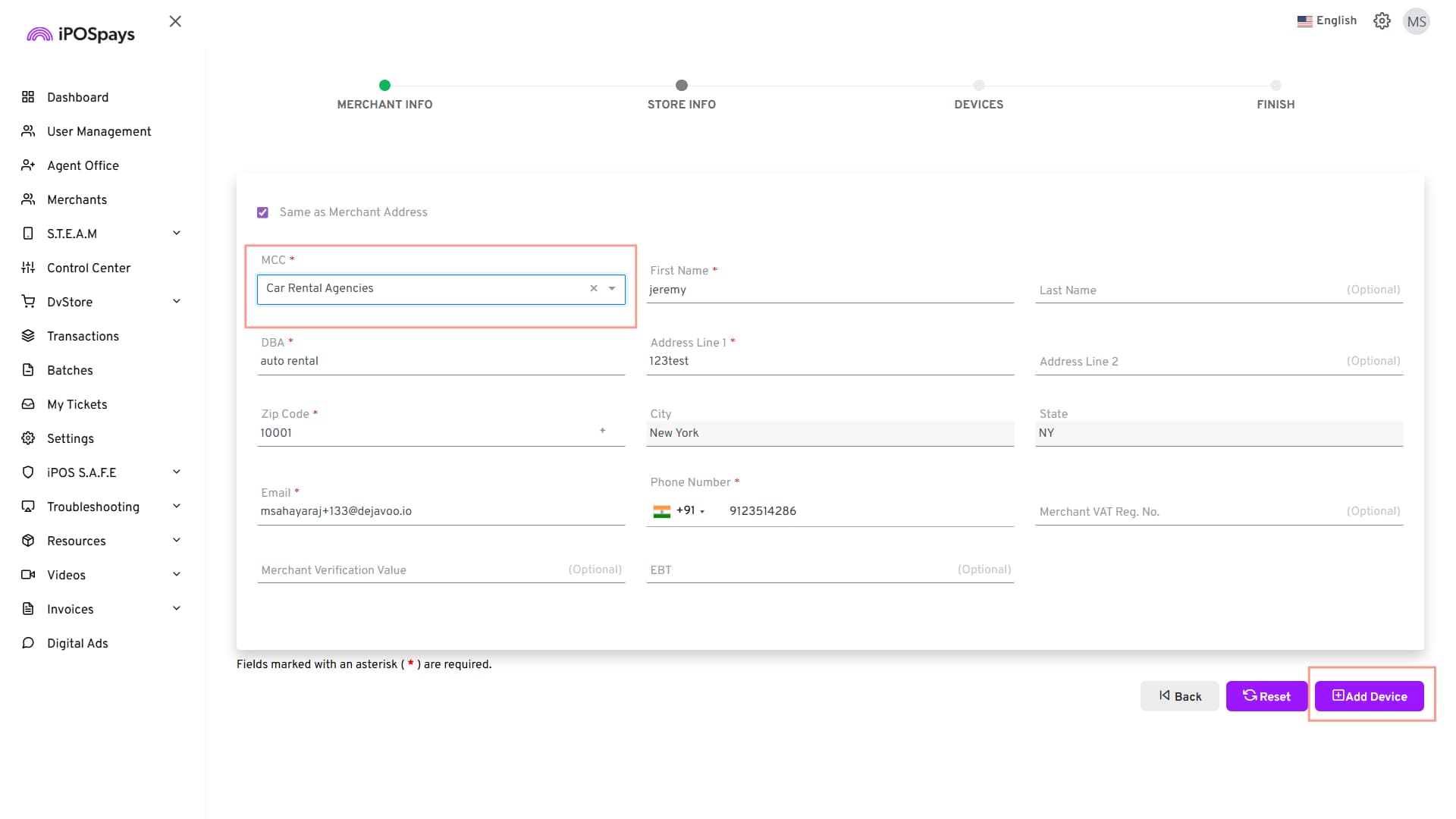
Complete the onboarding process.
Receipt Configuration
- Log in to the iPOSpays portal using your ISO account credentials.
- Navigate to: S.T.E.A.M → Edit Parameters → Select Merchant → Edit Parameter → Receipt
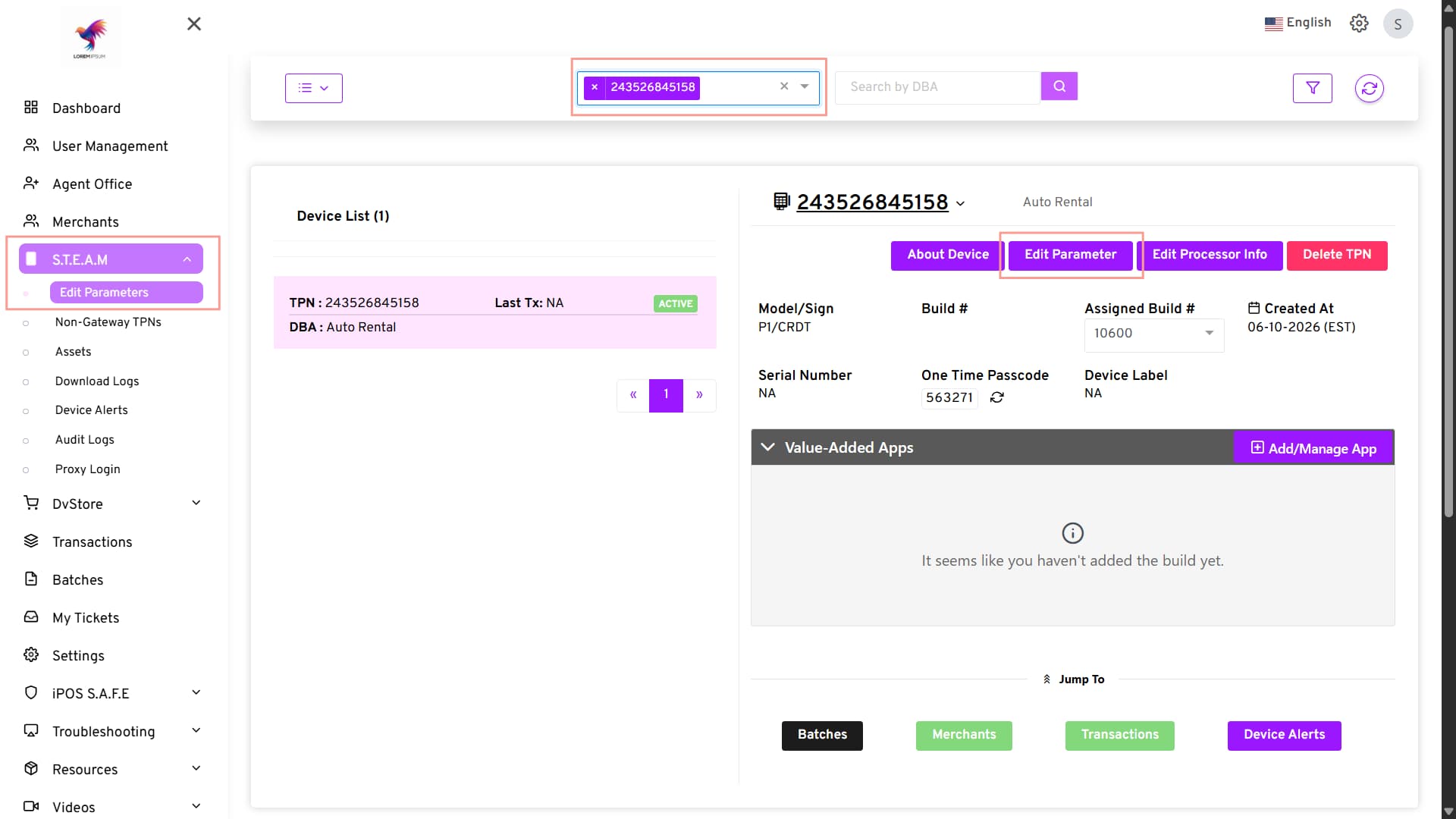
- Locate Auto Rental Details.
- Select:
- Yes – Print Auto Rental Details (Rental Agreement Number) on merchant receipts when available.
- No – Do not print Auto Rental Details.
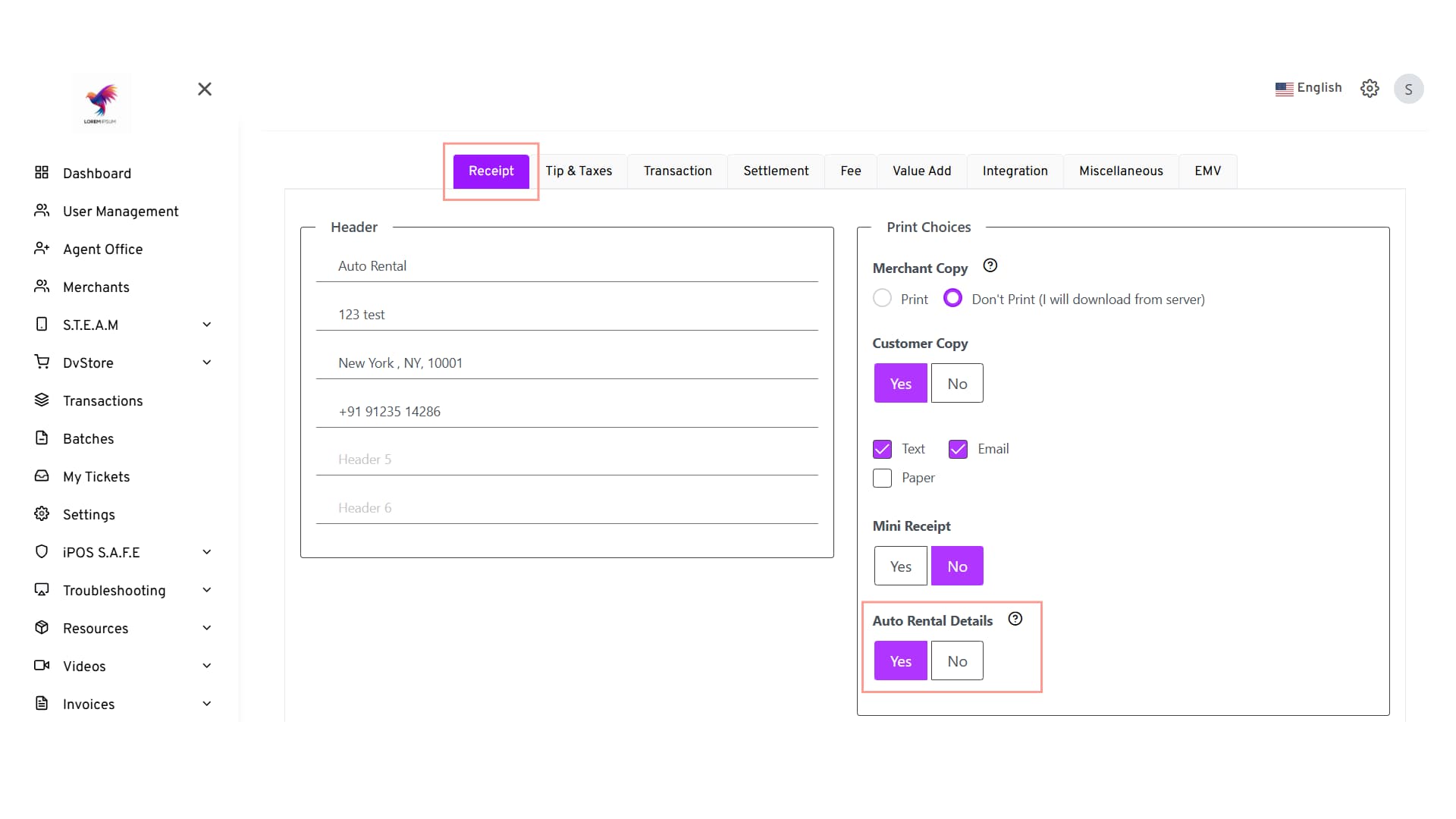
- Click Save or Save As Template.